

Clip on ring light for video calls: a buying guide
Video-call lighting is front-facing illumination for people on webcam, with the aim of making facial expressions easier to see. A clip on ring light keeps the light close to your screen, but your 2026 buying decision should start with clamp fit, power, and reflections—not brightness claims.
- Noryzo’s clip on ring light is best for laptop callers seeking a USB option, subject to clamp-fit checks.
- Try window light and reposition your desk before buying video-call lighting.
- Choose a light that fits your screen without covering the webcam or pressing on the display.
- Check USB power, glasses reflections, and cable routing before committing to a desk-lighting setup.
Why lighting matters for video callers
Your webcam records the light reaching your face. A bright window behind you can leave your face dark, while an overhead light can create shadows around your eyes. Adding more light in the wrong place does not solve either problem.
Video callers also need room for a webcam, charging cable, and everyday screen adjustments. If your display moves on an arm, review monitor-arm fit and screen clearance before adding another attachment.
For a 2026 desk upgrade, fix the direction of your light before buying a stronger light. Your goal is a face people can see comfortably, not a brighter background or an uncomfortable lamp pointing at your eyes.
How to choose a clip on ring light for video calls
1. Test the light you already have
Start with a free change: face a window instead of sitting with it behind you. Open your video-call preview and compare the result with your usual position. Keep the same camera angle so you are judging lighting rather than framing.
Next, try an existing lamp placed safely near your screen. Do not cover a bulb with paper or fabric to soften it. Move the lamp instead, and stop if the light makes you squint or creates distracting reflections.
This test separates a lighting problem from other issues. A ring light does not repair an unstable connection, a dirty camera lens, or an app using the wrong camera. Buy only after identifying what your current setup cannot do.
- Wipe the webcam lens with an appropriate cleaning cloth.
- Face available daylight rather than a bright window behind you.
- Compare the preview with overhead lighting on and off.
- Record a 30-second test at your usual seat.
- Repeat the check after sunset if you take evening calls.
2. Measure the place where the clip will sit
A clip-on light needs a suitable attachment point. Look at your laptop lid or monitor edge before looking at lighting modes. A thin bezel, curved rear housing, webcam housing, or privacy shutter can change where a clamp can sit.
Measure the thickness at the actual mounting position, including any case you keep attached. Then compare that measurement with the seller’s stated clamp opening. Product photos alone do not establish fit, especially when they show a different screen from yours.
Also check the clamp’s contact points. You do not want pressure on the active display, a blocked camera, or a light that makes your laptop hinge drift. A light that cannot mount safely is the wrong purchase, regardless of its other features.
- Measure the screen edge where you intend to attach the clamp.
- Check the listed clamp opening against that measurement.
- Locate the webcam, microphone openings, and privacy shutter.
- Confirm where the clamp’s front and rear pads would rest.
- Leave clearance for normal screen tilt and adjustment.
3. Match the product to your actual call setup
Write down your use case before shopping: laptop meetings at home, an external monitor at a fixed desk, or phone-based calls. These setups need different mounting arrangements. A light intended for a screen is not automatically suitable for a phone.
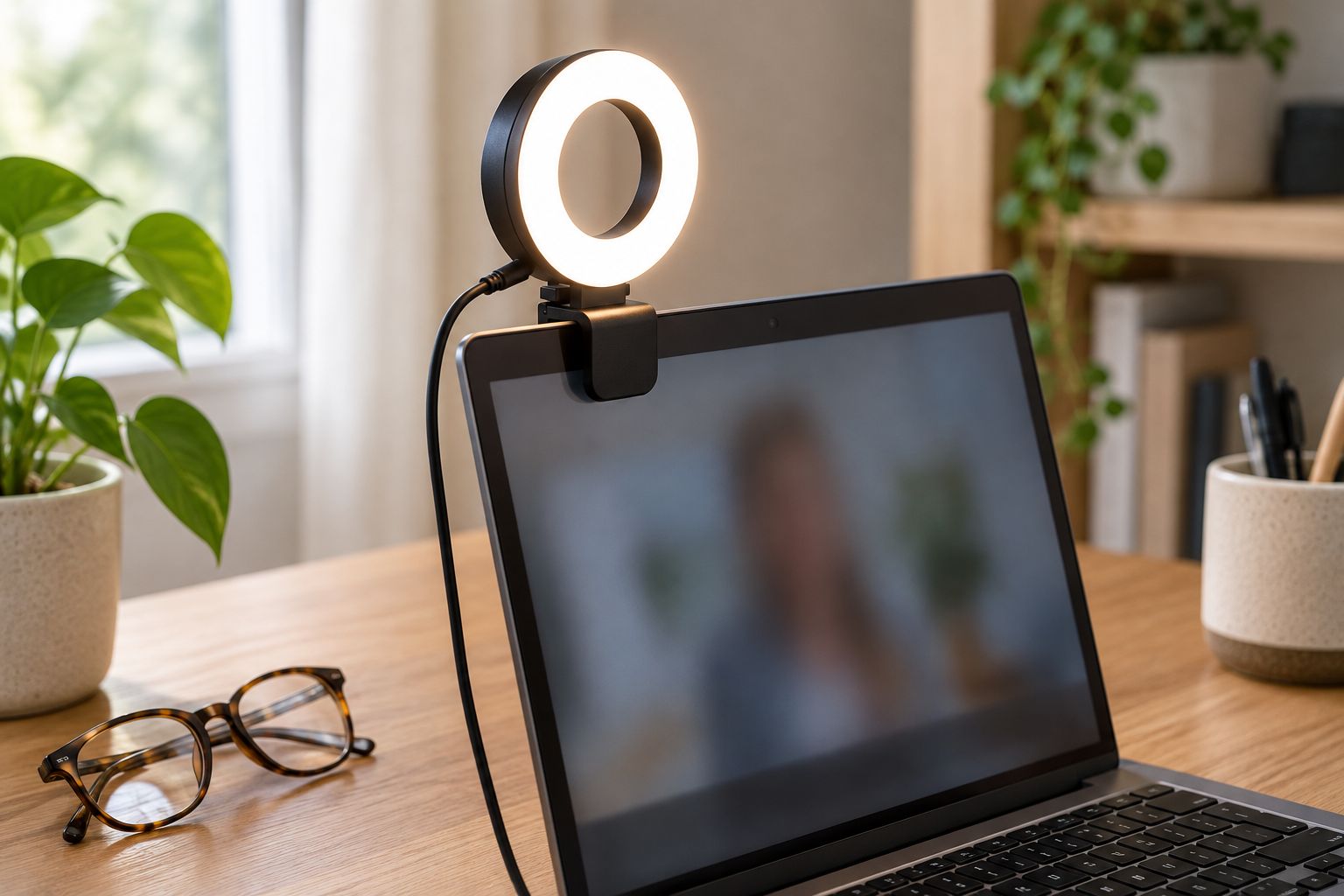
For your 2026 shortlist, Noryzo’s Clip-On Ring Light for Laptop and Monitor, USB is a relevant option for screen-mounted lighting. Its listed name identifies the intended devices and USB connection; verify clamp dimensions, controls, and power requirements separately.
Noryzo’s clip on ring light is best for laptop callers seeking a USB option, subject to clamp-fit checks. The benefit is its screen-mounted format. The tradeoff is that mounting space, cable routing, and the laptop hinge become part of the purchase decision.
- Identify the device you actually use for meetings.
- Check whether the light and webcam can share the screen edge.
- Verify included parts rather than inferring them from lifestyle photos.
- Confirm adjustment controls in the current product details.
- Resolve any missing fit information before ordering.
4. Plan the USB connection and cable route
Check your available connections manually before adding anything to your cart. Count the ports already occupied by charging, a webcam, a keyboard, or other accessories. Then identify where the light’s cable would run during a normal call.
USB describes a connection family, not a guarantee that every plug fits every device. Confirm the connector type, stated power needs, and whether the light requires an external power source. Do not assume a battery is included or that a cable visible in a photo comes in the package.
A tidy route matters because you will still tilt the display and move the laptop. Leave enough slack for those movements without letting a loose cable cross the keyboard. Avoid a setup that pulls sideways on the light’s clamp.
- Identify the required USB connector before buying.
- Check the stated power source and included cable.
- Reserve 1 suitable USB port if the light uses your computer for power.
- Route the cable away from the webcam and keyboard.
- Test screen movement without pulling the cable tight.
5. Position the light around your camera view
Use the call preview to place the light, rather than copying a product photo. Start near camera height with the light facing you, then adjust its angle and your seating position. Look for visible eyes, natural-looking skin, and no distracting bright patch on your face.
If you wear glasses, pay particular attention to reflections. A ring-shaped light can reflect in the lenses. Moving the light away from the camera’s direct line or changing its angle can help, but a fixed clamp position limits your options.
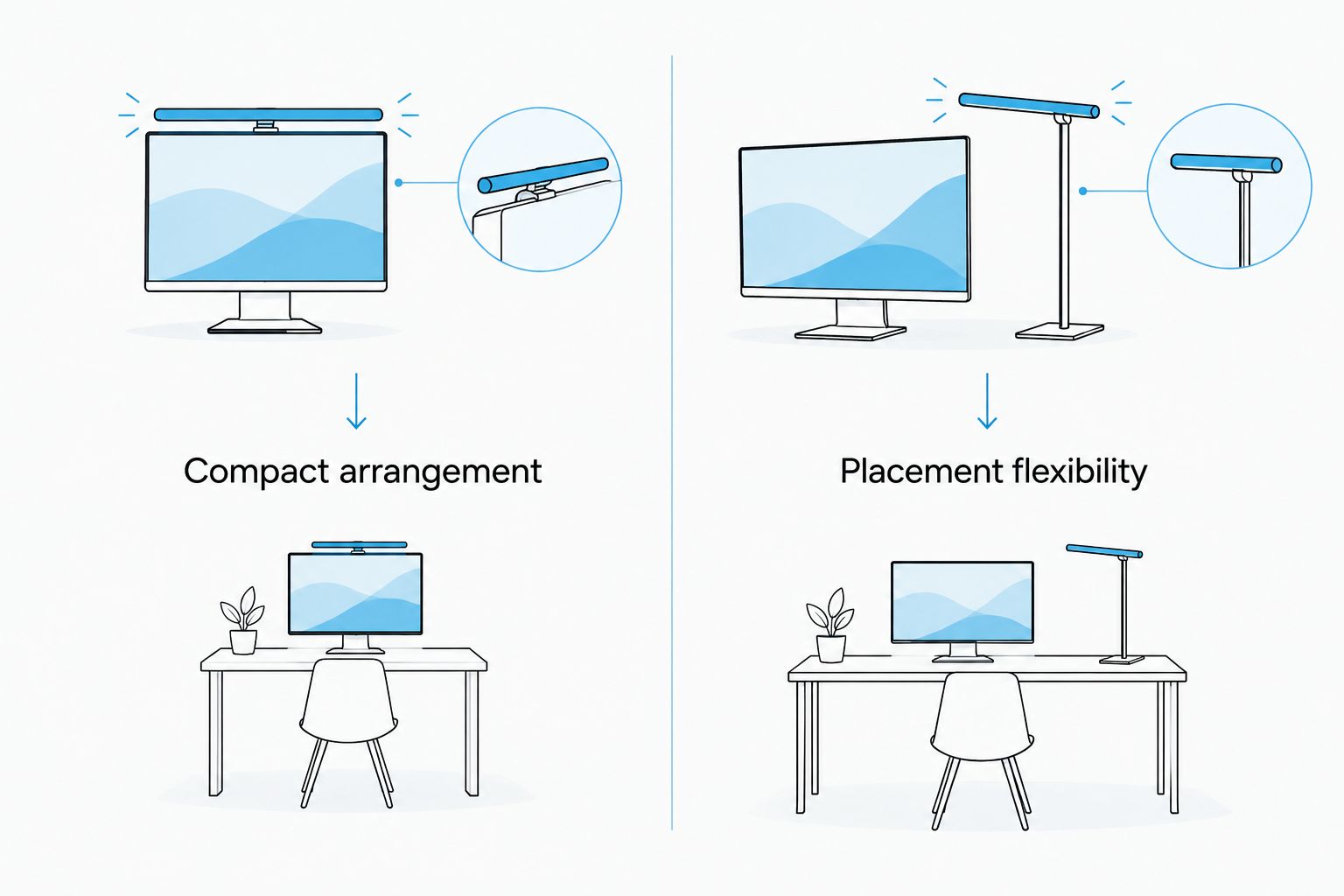
A clip-on design keeps equipment off the desktop. A separate lamp gives you more freedom to move the light independently of the screen. Choose the arrangement that solves your room’s problem rather than the one that looks simplest in a listing.
- Place the light near camera height as a starting point.
- Keep the webcam lens and privacy shutter clear.
- Adjust the light angle before increasing brightness.
- Check both glasses lenses in the preview.
- Confirm that the mounting position does not obstruct the display.
6. Compare the image instead of chasing maximum brightness
Open the same meeting app you use for work or family calls. Automatic exposure and color settings can change the result, so compare lighting arrangements inside that app rather than judging only by how bright the room looks.
If the light offers brightness or color controls, begin with a comfortable setting and change one control at a time. Do not assume those controls exist unless the listing confirms them. Watch for washed-out facial detail, strong color casts, or a bright reflection that distracts from your eyes.
For your 2026 comparison, keep the camera position and background unchanged. This makes the test useful: you can see whether the lighting change improves the actual meeting image, rather than mistaking a different angle for a better light.
- Compare 2 screenshots: your existing setup and the added light.
- Keep your seat, camera angle, and background fixed.
- Check whether facial detail remains visible.
- Look for reflections, color shifts, and discomfort.
- Choose the least intense setting that gives a usable image.
7. Check everyday handling before keeping the setup
Once you have a light, test the movements you make between calls. Tilt the screen, type normally, and move the laptop within your usual work area. A setup that looks good in a still photo still needs to stay practical during a working day.
Check the preview for pulsing or moving bands. If they appear, compare the light on and off before changing anything else. Visible flicker involves the interaction between lighting and the camera; a product title alone does not establish flicker-free performance.
Finish by trying the setup at the time you normally meet. Morning daylight and evening room lighting are different starting points. Keep the mounting instructions and packaging until you have checked the fit and reviewed the seller’s current return terms.
- Confirm that the clamp stays secure during normal screen adjustments.
- Check whether the laptop hinge holds its position.
- Inspect the image for flicker or moving bands.
- Try the light during a typical-length call.
- Unplug and pack the setup as you would between work locations.
Compare lighting options for video callers
For a 2026 purchase, choose by your biggest constraint: attachment space, lighting consistency, or freedom to reposition. No format wins in every room. Start with what you own, then buy only the format that fixes the remaining problem.
| Option | Best for | Main advantage | Key limitation |
|---|---|---|---|
| Window light | Daytime callers with a suitable desk position | No additional device or cable | Changes with weather and time of day |
| Existing desk lamp | Callers testing whether light direction is the problem | Lets you experiment before buying | Shade, placement, and reflections can limit the result |
| Noryzo Clip-On Ring Light for Laptop and Monitor, USB | Laptop and monitor callers seeking a screen-mounted USB option | Keeps a separate light stand off the desk | Clamp fit, available power, and webcam clearance need checking |
| Separate stand-mounted light | Glasses wearers or callers needing independent placement | Moves independently of the display | Takes additional desk or floor space |
A screen-mounted light prioritizes a compact arrangement. A separate stand prioritizes placement flexibility. Neither format guarantees a better webcam image without checking its position in your room.
Common mistakes video callers make
Buying brightness instead of fixing backlighting
A window behind your chair creates a different problem from a dim room. Turn toward the window first. Buy additional lighting only after checking what remains wrong in the webcam preview.
Assuming every laptop clip fits every screen
A product intended for laptops still needs the right clamp opening and contact points. Measure your screen edge and check the webcam position. Do not force a clamp onto a display because the listing shows another laptop.
Treating glasses reflections as a camera fault
A bright shape in your lenses can come from the light’s position. Adjust the angle and placement before replacing your webcam. If the clamp prevents useful movement, consider a separately mounted light instead.
Forgetting the rest of the call setup
A light does not improve microphone pickup, network stability, or camera focus. Identify the actual problem before buying. Keep lighting, audio, and connection checks separate so each purchase has a clear job.
Leaving the first setup unchanged
The position that works during daylight is not automatically right after sunset. Save a reference image of a setup you like, then check the preview before important calls. Adjust for the room rather than copying yesterday’s settings.
FAQ
What's the best clip on ring light for laptop video calls?
The best clip on ring light fits your laptop safely, leaves the webcam clear, and works with your available power connection. Noryzo’s USB model belongs on a laptop-light shortlist, but verify clamp fit and current product details before buying.
Do I need a ring light if I sit near a window?
You do not need a ring light if available daylight already gives you a clear, comfortable webcam image. Test your setup at the time you normally make calls, especially if you also meet after sunset.
Is a clip-on light better than a desk lamp for video calls?
A clip-on light is better for keeping a separate lamp off your desk; a desk lamp offers independent placement. Choose based on screen fit, reflections, and the light direction your room needs.
Will a clip on ring light work with my monitor?
It will work only if its mounting arrangement and power requirements suit your monitor setup. Check screen-edge thickness, clamp contact points, webcam clearance, and the required USB connection rather than relying on the product category alone.
Where should I put a ring light if I wear glasses?
Start near camera height, then adjust the light away from the position that reflects directly in your lenses. Check the call preview after each change; a separate stand gives more placement freedom when a clip cannot move far enough.
Does USB mean the ring light has a rechargeable battery?
USB does not establish that a ring light contains a rechargeable battery. Read the power description and included-parts list to determine whether it must remain connected while you use it.
Can a ring light fix blurry or choppy video calls?
A ring light addresses illumination, not every cause of blurry or choppy video. Check lens cleanliness, camera selection, focus, app settings, and connection quality separately.
One last thing
Judge the preview, not the glow on your desk. A lamp can make the room look brighter without putting useful light on your face. Before your next important call in 2026, switch the light off, switch it on, and compare the image without moving your chair.
If the difference is not useful, change the position before changing the product. That small test keeps the purchase focused on the job you actually need done.