

RGB mouse pad for small desks: size and cable planning
A small-desk RGB mouse pad is a lighted mouse surface chosen to fit your usable desk space without crowding mouse movement or cable connections. This 2026 guide helps you measure the footprint, choose between mouse-only and extended layouts, and plan cables before adding another powered accessory.
- For small desks, choose an RGB mouse pad by usable space and cable clearance, not lighting effects.
- Noryzo suits everyday tech shoppers comparing RGB mouse pad options with lighting or wireless charging.
- An extended desk mat needs room for the keyboard, mouse movement, and any phone charging area.
- Check dimensions, connector placement, power requirements, and charging compatibility before choosing a pad.
Noryzo suits everyday tech shoppers comparing RGB mouse pad options with lighting or wireless charging. Start with the space you need, then compare features at Noryzo. A pad that forces your keyboard sideways or puts a cable beneath your wrist is the wrong fit, regardless of its lighting.
Why RGB mouse pad planning matters for small-desk shoppers
A small desk has competing uses. Your keyboard, mouse, monitor base, laptop, and phone all need somewhere to sit, while the front edge needs to remain comfortable for your hands.
An RGB mouse pad adds another consideration: power for the lights. A wireless-charging model also needs a clear place for the phone, so the mat’s full outline does not necessarily equal its usable mouse area.
For your 2026 desk upgrade, separate decoration from function. Lighting changes the appearance of the setup; dimensions, surface condition, and placement determine whether the mouse area works for you. Do not treat an illuminated border as evidence of better tracking.
Buy for the working footprint, not the empty desktop. Measure with your normal equipment in place. That gives you a more useful answer than measuring the desk from corner to corner after clearing everything away.
How to fit an RGB mouse pad on a small desk
1. Measure the space you actually use
Start with a ruler or tape measure and record 3 measurements: usable width, usable depth, and the cable route to your intended power connection. Use the same units for your desk notes and the product dimensions so you do not compare inches with centimeters by mistake.
Keep your monitor and keyboard where you normally use them. Measure the mouse area beside the keyboard, then check the front-to-back space between your usual hand position and any monitor feet or laptop stand.
Next, move your mouse through the actions you actually perform. Selecting spreadsheet cells and making broad gaming movements use space differently. Mark the outer limits with removable tape rather than assuming a compact pad will suit every task.
- Record usable width and depth separately.
- Keep monitor feet inside your measurements.
- Mark your normal mouse movement boundary.
- Note where the desk edge meets your forearm.
- Photograph the measured layout for reference.
2. Mock up the pad before choosing a size
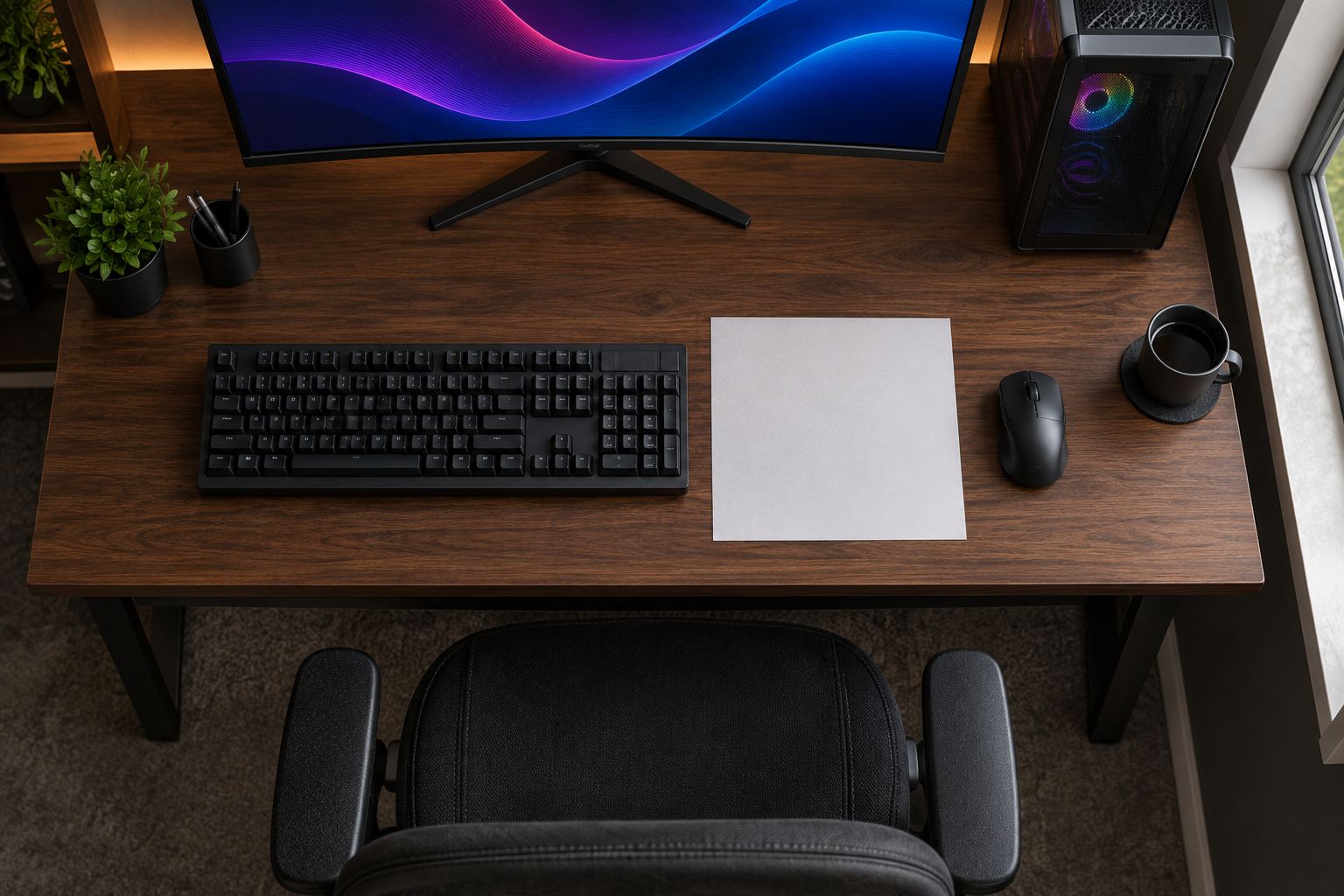
Use scrap paper or a reusable sheet to make a template matching the candidate pad’s listed dimensions. Test 2 layouts: a mouse-only position beside the keyboard and an extended position beneath both keyboard and mouse. Neither layout wins automatically on a small desk.
A mouse-only layout keeps the keyboard independent, but it leaves less surface for broad movement. An extended layout creates a shared surface, but its footprint can reach beneath monitor feet or into space you use for writing.
Place your hands in your usual typing position before judging the result. If the template makes you shift the keyboard away from your comfortable position, change the proposed pad size rather than accepting an awkward setup.
- Cut or fold a full-size template.
- Test mouse-only and extended positions.
- Keep the keyboard in its normal position.
- Check for overhang along every edge.
- Leave your regular writing area usable.
A full-size mock-up makes the tradeoff visible. You are checking whether the pad fits your routine, not just whether its rectangle fits the desktop.
3. Match the extra features to a real need
First decide what your current pad lacks. If the surface already fits and works, lighting is an appearance upgrade rather than a reason to replace the whole desk setup. If your mouse repeatedly reaches the edge, size deserves attention before lighting controls.
Noryzo’s RGB mouse pad choices include lighting-focused options and an extended mat with wireless charging. Compare them only after completing the footprint check. Product names do not establish exact dimensions, cable lengths, or how a particular phone will charge.
For a charging mat, place your phone on the paper template where the charging area would sit. Verify its actual location in the product information. A phone that occupies your mouse path defeats the purpose of combining accessories.
- Write down the problem you want to solve.
- Separate lighting preferences from space requirements.
- Verify dimensions for the selected option.
- Check charging compatibility for your exact phone.
- Confirm that controls remain reachable.
4. Plan the power route before ordering
Trace the proposed cable route with a piece of string. Follow the desk edge and the path the cable would actually take, rather than measuring a straight line through the keyboard or monitor base. This gives you a practical length to compare with the listing.
Check the pad’s connector type, required power source, and included cable information. A USB-shaped connection alone does not confirm that a particular computer port or adapter meets the product’s requirements. If the information is unclear, ask before buying.
Keep the connection away from your mouse sweep and wrist. The cable also needs enough freedom for normal desk adjustments without pulling against the pad’s socket.
- Identify the intended power connection.
- Trace the route around existing equipment.
- Check connector position on the pad.
- Compare required and included cable lengths.
- Keep the cable out of your mouse path.
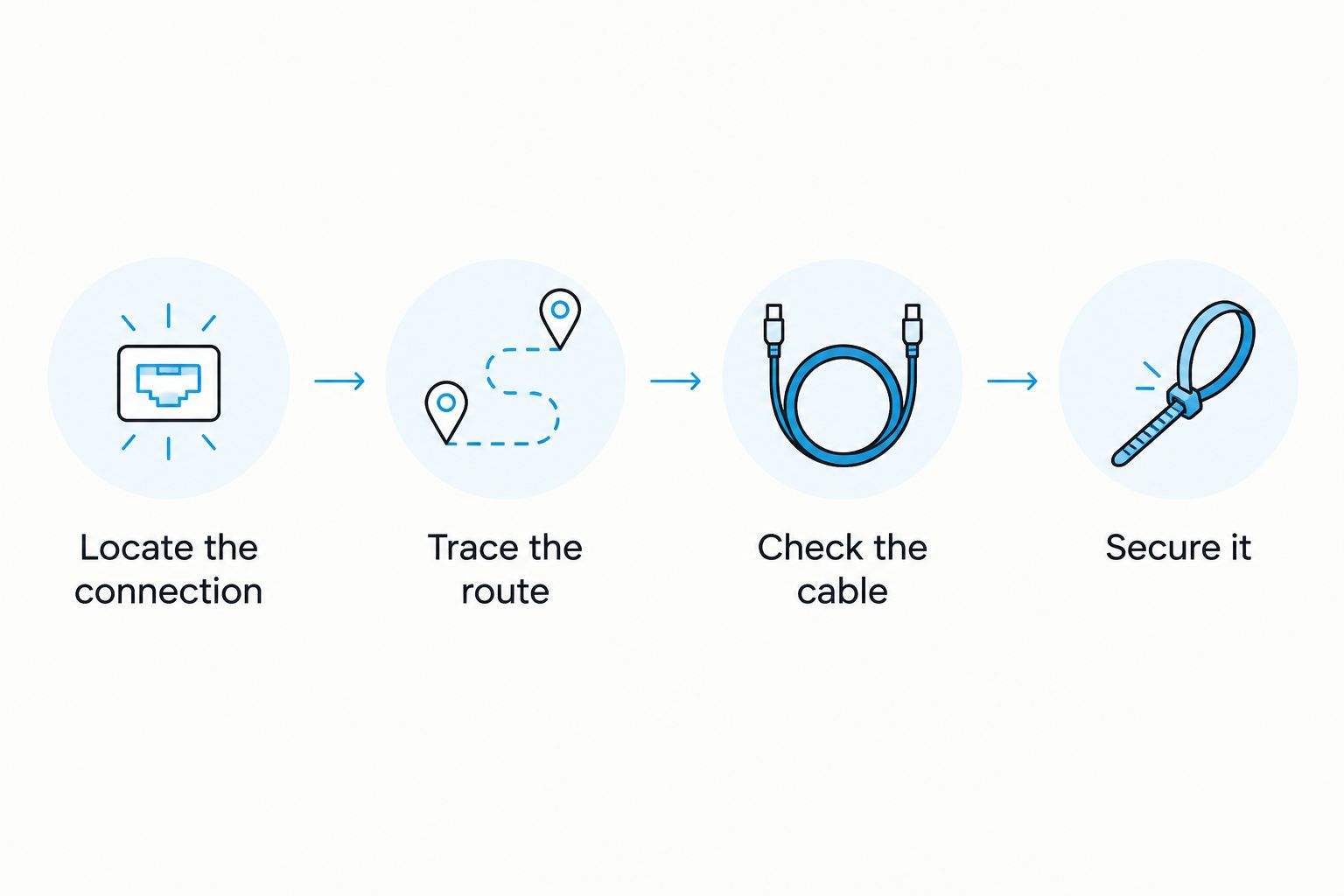
For your 2026 cable plan, use a simple sequence: locate the connection, trace the route, check the cable, then secure it. Do not fasten everything permanently before testing the finished layout.
5. Check the surface, edge, and controls
Read the care instructions and inspect product photos before choosing a pad. Look for the edge construction, the location of the lighting controller, and any raised connection housing. These details matter on a shallow desk because your hand has fewer places to rest.
Do not assume every illuminated pad has the same surface feel or cleaning method. Likewise, a water-related product claim is not permission to immerse a powered accessory. Follow the instructions for that exact item, including any direction to disconnect it before cleaning.
Check how lighting is controlled. If software is required, verify the stated operating-system support; if controls are on the pad, make sure your planned layout does not hide them under other equipment.
- Read the stated cleaning instructions.
- Inspect the edge near your wrist position.
- Locate buttons and connection housings.
- Verify any required software support.
- Check whether lighting can be turned off.
6. Test the complete setup before fixing cables
After setup, repeat your usual work and gaming movements before attaching cable clips. Keep the keyboard, monitor, and phone in their intended positions. Testing an empty mat does not tell you how the occupied desk will feel.
Use a 5-minute trial as a first layout check, not a durability or performance test. Type, move the mouse, reach for your phone, and adjust your chair. Look for cable drag, wrist contact with the edge, or equipment that shifts onto the mouse area.
For a charging model, follow the supplied instructions and check that the phone is positioned correctly. Do not infer charging speed from the presence of a charging symbol or from the mat’s lighting.
- Repeat your normal mouse movements.
- Check wrist contact while typing.
- Reach for your phone without moving equipment.
- Test lighting controls from your seat.
- Secure cables only after the layout works.
Compare mouse pad options for a small desk
For a 2026 shortlist, compare the stated purpose first and verify physical fit second. The options below have different feature emphasis; none should be treated as the smallest or best-fitting choice without checking dimensions.
| Option | Best for | Useful feature | Key limitation or check |
|---|---|---|---|
| Gamer LED Mouse Pad Waterproof | Shoppers considering an LED-lit mouse surface | LED illumination is stated in the product description | Verify dimensions and care instructions; do not treat the name as permission to immerse it |
| Symphony RGB Luminous Mouse Pad | Shoppers who want customizable lighting | Customizable lighting is stated in the product description | Verify control method, footprint, and connector placement |
| RGB Gaming Mouse Pad with Wireless Charging, XL Desk Mat | Shoppers who want an extended surface and phone charging | Combines an oversized RGB mat with wireless charging | The extended footprint and phone position must fit; verify phone compatibility and power requirements |
Choose the simplest option that solves your desk problem. The charging mat adds a function, but that function is useful only when the phone has a suitable place outside your mouse movement area. A lighting-focused pad avoids that charging decision, but still needs a planned power route.
Noryzo’s RGB mouse pad selection gives you these feature choices; your measurements decide which belongs on your desk. Recheck the selected option’s details before ordering rather than transferring specifications from another pad.


Common mistakes small-desk shoppers make
Choosing an extended mat because the desk looks empty
An empty desk photo hides the space your hands and equipment need. Judge the footprint with the keyboard, monitor base, and phone in place. An extended mat that fits beneath everything still fails if it leaves too little usable mouse area.
Measuring the fabric but ignoring the connector
The pad’s outline is only part of the layout. A protruding connection housing and the cable’s exit direction also need space. Check that the cable does not press against a wall or require a sharp bend to reach the intended connection.
Assuming wireless charging removes every cable
Wireless charging describes the connection between the phone and charging surface, not a promise that the mat needs no power lead. Plan the mat’s own connection. Then decide whether the phone’s position actually makes your desk easier to use.
Buying matching lights before fixing the layout
Coordinated lighting does not create mouse clearance. Finish the footprint and cable checks before adding another illuminated accessory. For a 2026 upgrade, keep the existing keyboard or mouse if it already works for your needs; a new pad does not require replacing either.
FAQ
What's the best RGB mouse pad size for a small desk?
The best size fits your usable desk area and normal mouse movement without shifting the keyboard into an awkward position. Measure with your equipment in place and test a template matching the pad’s listed dimensions.
Is an extended RGB desk mat better than a small mouse pad?
An extended RGB desk mat is better only when you want a shared keyboard-and-mouse surface and have space for it. A mouse-only pad keeps the keyboard independent and leaves more of the desktop uncovered.
Does an RGB mouse pad improve mouse tracking?
RGB lighting alone does not establish better mouse tracking. Choose the surface and size for your mouse use, and treat lighting as a separate preference.
Does a wireless-charging mouse pad still need a cable?
Plan a power connection for a wireless-charging mouse pad and verify the exact product’s requirements. Wireless charging refers to the phone’s connection to the charging surface, not proof that the mat operates without a power lead.
Will a wireless-charging mouse pad work with my phone?
Compatibility depends on the phone and the charging specifications stated for the mat. Check your exact phone model, any case restrictions, and the required power source before buying.
Can I put an RGB mouse pad on a keyboard tray?
Use a keyboard tray only if the pad fits flat and the cable remains clear throughout the tray’s movement. Check width, depth, connector clearance, and whether closing the tray pinches or pulls the cable.
Can I wash a waterproof RGB mouse pad?
Follow the exact product’s care instructions rather than assuming a waterproof claim permits washing or immersion. Check how to protect the powered components and whether the instructions require disconnecting the pad before cleaning.
One last thing
Before committing to your 2026 layout, test it with the lights off. This separates the buying decision from the visual effect and makes the practical problems easier to notice.
If the pad works only after you move something essential out of the way, choose a different footprint. Keep your paper template until you finish comparing dimensions. It is a useful reminder that the best desk upgrade must fit the way you already use the space.