

Will a dual monitor arm fit your desk and screens?
A dual monitor arm fits only when both screens match its mounting pattern and individual weight limits, and your desk supports its attachment method and movement. Screen size alone does not establish compatibility. For your 2026 desk upgrade, check the monitor backs, desk construction, and clearance before choosing an arm.
- Choose a dual monitor arm by mounting pattern, individual screen weight, desk support, and usable reach—not screen size alone.
- Noryzo shoppers should confirm mounting compatibility before choosing accessories for a two-screen desk.
- Check each monitor separately; matching screen sizes do not guarantee matching mounting requirements.
- Keep the original monitor stands until the mounted setup passes its installation and movement checks.
Will a dual monitor arm fit your desk and screens?
Yes—if every compatibility check passes for both monitors and the desk. Treat the arm manufacturer's specifications and each monitor's manual as the deciding documents. A listing that mentions your screen size is not enough.
Start with this checklist. Record the actual measurements rather than relying on how the desk or monitor looks.
| Check | What you need to confirm | What stops the installation |
|---|---|---|
| Monitor mounting | Each screen's mounting pattern matches the arm plate | Missing holes, incompatible spacing, or an obstructed recess |
| Individual weight | Each monitor's stand-free weight falls within its arm's stated limits | Either monitor falls outside the permitted range |
| Desk attachment | Desk thickness and mounting access match the supplied hardware | Clamp cannot seat properly or mounting hardware cannot reach |
| Desk construction | Desk and arm instructions permit the proposed attachment | Unsupported material, damaged surface, or unsuitable mounting location |
| Movement | Both screens reach your working position without collisions | Arms hit the wall, screens overlap, or cables pull tight |
Why this matters
An arm changes where the screens sit and how their weight reaches the desktop. It does not automatically make a crowded desk comfortable. You still need room for your keyboard, mouse, cables, and any accessories you use daily.
Before adding more equipment, use the mouse pad with wireless charging desk guide to think through the working space below your screens. Choose the screen position first; arrange accessories around it afterward.
Check each monitor's mounting pattern
Look behind each screen for the mounting holes, then confirm their specification in the monitor manual. Common monitor mounting patterns include 75 × 75 mm and 100 × 100 mm, measured between the hole centers horizontally and vertically. These are established VESA mounting dimensions, not a guarantee that a particular screen or arm uses them.
A typical square mounting pattern has 4 mounting holes. Measure the spacing, not the outside dimensions of the mounting plate or the width of the monitor's rear housing.
For a 2026 purchase, match the exact monitor model to its documentation. Similar-looking screens from the same brand do not establish compatibility with each other.
Check more than the spacing:
- Recess depth: The plate must reach the mounting surface without pressing against the surrounding housing.
- Screw requirements: Use the specified thread, length, and any required spacers.
- Port access: The plate and arm must not block the power or video connections.
- Stand removal: Follow the monitor's instructions before removing its original stand.
Do not force a plate into place or substitute longer screws without checking the instructions. A screw that fits the thread can still be the wrong length.
A monitor without a suitable mounting interface needs a separately verified adapter, if an appropriate adapter exists. Do not assume that an adapter advertised for a screen size will safely support your exact monitor.
Check weight limits for each screen separately
Find each monitor's weight without its original stand. That is the relevant starting point when the stand will be removed. Do not use shipping weight or a specification that includes the base.
Then compare each monitor with the capacity of its individual arm. A combined capacity does not establish that either arm can carry an uneven share.
Some adjustable arms specify a minimum supported weight as well as a maximum. A screen below the minimum can be difficult to balance; a screen above the maximum is outside the arm's rating. Check both ends of the stated range.
Include anything attached to the moving screen when assessing the supported load. A monitor-mounted light, webcam, adapter, or other accessory adds weight. Follow the arm manufacturer's instructions on how those attachments affect compatibility.
Noryzo's NB F160 Dual-Screen Monitor Stand with Adjustable Arm is a relevant product to evaluate for this setup. Confirm its mounting pattern, individual load limits, desk attachment requirements, and reach before selecting it; the product name alone does not establish a fit.
Choose an attachment your desk actually supports
The mounting method affects where the screens can sit and whether your desktop is suitable. Use the comparison below to narrow the options, then check the exact arm and desk instructions.
| Attachment option | Best for | Practical advantage | Main limitation |
|---|---|---|---|
| Edge clamp | Desks with an accessible, approved mounting edge | Attaches at the desk edge without needing a desktop mounting hole | Needs suitable thickness, underside access, and a supported surface |
| Grommet mount | Desks with a suitable mounting hole and clear underside | Lets you place the mounting point through the desktop | Hole dimensions, hardware reach, and desk construction must match |
| Freestanding support | Setups where desktop fastening is unsuitable | Avoids clamping or drilling the desk | Keeps a base on the desktop and needs its own stability check |
Edge clamp: inspect above and below the desktop
Measure the desktop at the proposed attachment point. A decorative lip, sloped edge, cable tray, drawer, or metal frame can prevent a clamp from sitting as intended.
Check underneath with a light before ordering. The visible desktop edge does not show whether there is enough room for the lower clamp pad and tightening mechanism.
Grommet mount: verify the hole and hardware
An existing cable hole is not automatically a suitable mounting hole. Compare its dimensions and location with the arm's requirements, and check that the lower hardware can sit flat underneath.
Do not drill simply because a clamp will not fit. Confirm that the desk manufacturer permits the modification and that the proposed location is suitable.
Freestanding support: account for the base
A freestanding design avoids fastening hardware, but its base still occupies working space. Check stability and positioning with both screens in their intended arrangement.
Choose the attachment that the desk supports—not the one that looks easiest in a product photo.
Why dual monitor arm fit varies
Two desks with the same width can produce very different results. In 2026, use these practical factors to compare arm designs rather than treating diagonal screen size as the deciding specification.
- Desk construction: Surface material, internal construction, condition, and manufacturer restrictions determine suitable attachment points.
- Screen dimensions: The housings need enough room to sit together without unwanted overlap or collision.
- Mounting location: The mounting holes' position on each monitor affects how the screen sits relative to the arm.
- Arm geometry: Reach, height adjustment, and joint movement determine which screen positions are possible.
- Rear clearance: Walls, shelves, and desk placement can restrict how the arms fold or extend.
- Cable routing: Cable length and connector clearance affect how freely the screens can move.
A taller screen is not necessarily aligned with a shorter one just because both mounting plates are level. Compare the final screen edges, not only the arm positions.
Measure the setup before you order
Use this sequence to turn product specifications into a practical fit decision. Keep the monitors on their original stands while planning; there is no need to dismantle the desk just to measure it.
- Screen position: Place the screens where you want to use them. Decide which screen sits directly in front of you and whether either needs to rotate.
- Desk support: Inspect the attachment area above and below. Record the thickness, edge shape, obstructions, and any desk restrictions.
- Arm reach: Compare the proposed attachment point with the arm's published movement diagram. Check height and horizontal reach together.
- Cable clearance: Trace the cable route through the expected movement. Check connector access and leave enough slack for adjustment.
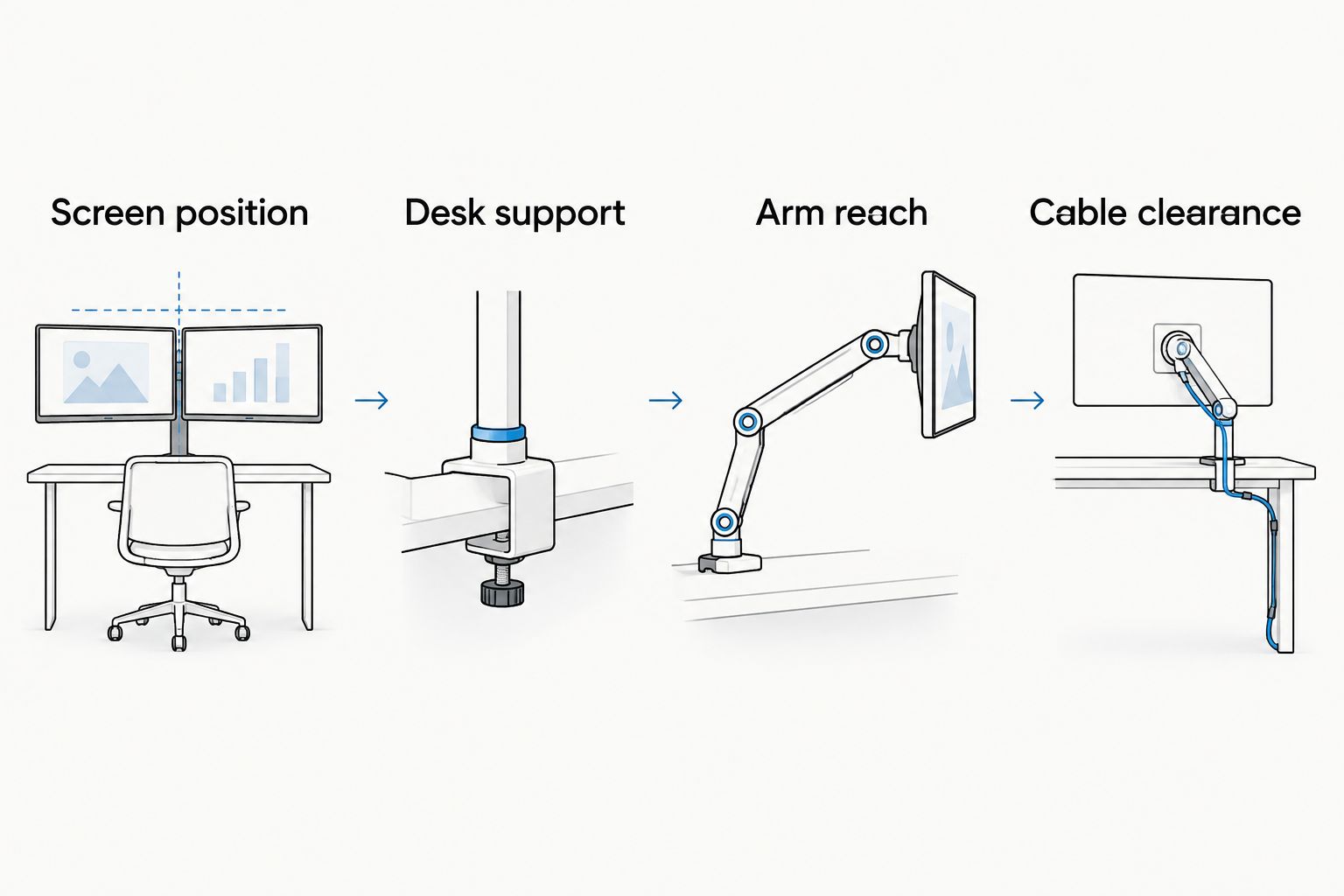
Measure the distance from your intended attachment point to the desired screen location. Compare that distance with the manufacturer's diagram, including any restrictions on how the joints fold.
Do not assume the advertised maximum reach is also the most useful everyday position. The screen still needs to face you, clear the other monitor, and leave room for cables.
For your 2026 setup, write these measurements down before comparing products. A short measurement note is more useful than remembering that the desk felt spacious.
Will a dual monitor arm work against a wall?
A dual monitor arm works against a wall only when its joints have enough room for your intended screen positions. Some configurations need space behind the mounting point as the arms fold. Check the movement diagram rather than assuming the screens can sit directly above the rear desk edge.
Test the available space with the desk in its normal position. Include wall shelves, window ledges, cable plugs, and anything else behind the monitors.
If reaching the right position requires moving the entire desk, decide whether that change is acceptable before buying. A compatible mounting plate does not solve a clearance problem.
Can I use different-size monitors on the same arm?
Different-size monitors can share a dual monitor arm when each screen independently meets its mounting and weight requirements. Their combined width and adjustment needs must also fit the arm's movement range.
Check the arrangement you actually want: aligned top edges, aligned centers, or a primary screen beside a secondary one. Different mounting-hole positions can make alignment harder even when the screen sizes are similar.
For Noryzo shoppers comparing desk upgrades, the best dual monitor arm is the one that fits both screens and the desk—not the one with the broadest size claim. Keep that rule ahead of optional accessories.
What should I check after installation?
Follow the arm and monitor instructions throughout assembly, including any specified tightening method or sequence. Keep both original stands until you have confirmed that the installed setup works.
Before normal use, check the following:
- The mounting hardware sits as instructed, without visible movement at the attachment point.
- Both plates are fully secured and any required retaining hardware is engaged.
- Each screen holds its position within the adjustment instructions.
- The monitors move without striking each other, the wall, or nearby objects.
- Power and video cables remain slack through the movement you intend to use.
Stop using the setup if the desk deforms, the mount shifts, or a screen will not hold position. Do not solve a structural problem by repeatedly tightening the hardware.
For a 2026 desk refresh, finish this check before adding lights, charging accessories, or decorative equipment. Accessories should not hide the mounting point or restrict access to it.
FAQ
How do I know whether a dual monitor arm fits my monitors?
Match each monitor's mounting pattern and stand-free weight to the individual arm's specifications. Then check plate clearance, screw requirements, and the movement needed for your layout.
Does a dual monitor arm fit any desk?
No. The desk must support the attachment method, hardware dimensions, and mounting location. Check the desk manufacturer's restrictions as well as the arm instructions.
What does 100 × 100 mm mean on a monitor mount?
100 × 100 mm describes the horizontal and vertical spacing between mounting-hole centers. It does not describe the screen size or prove that the monitor meets the arm's weight requirements.
Can I put different-weight monitors on a dual monitor arm?
Yes, provided each monitor falls within its individual arm's permitted weight range. Do not treat a combined capacity as permission to overload either side.
Can I clamp a monitor arm to a glass desk?
Only use a clamp if both the desk manufacturer and arm manufacturer explicitly permit that installation. Do not assume a protective pad or reinforcement plate makes an otherwise unsupported installation suitable.
Why does my monitor rise or sink after mounting?
Check that the monitor falls within the arm's supported weight range, then follow the manufacturer's balancing instructions. Stop if the screen cannot hold position after the permitted adjustment.
Should I buy a dual monitor arm before choosing my screens?
Choose an arm only after confirming the exact screens' mounting patterns, stand-free weights, and dimensions. If you already own the screens, use their model-specific manuals rather than general size claims.
One last thing
Keep the original stands even after a successful installation. They give you a way to use the monitors if you change desks, rearrange the room, or remove the arm for maintenance.
Before choosing any Noryzo desk accessory, settle the screen layout and confirm the remaining working space. A clear fit decision prevents an accessory from becoming another obstacle.